
Before you start (10 minutes of decisions)
Three decisions before touching the phone: (1) Their Apple ID, not yours — sharing yours tangles messages, photos, and purchases in ways that are painful to undo. If they don't have one, create it with their email, and write the password down together. (2) Where credentials live — one card, one drawer, both of you know it. (3) What this phone is for — calls, photos of the grandkids, maybe messages. Set up for that phone, not for every feature it could have.
Step 1 — The basics, with their hands on the phone
Insert the SIM or finish the carrier transfer, sign in with their Apple ID, and set a 6-digit passcode they choose. Then set up Face ID together — with them holding the phone at the angle they naturally use, sitting, not you holding it up. Face ID done right means the passcode almost never blocks them again.
Step 2 — Make it readable before anything else
Do the eyes first, then everything after is easier for them to follow: Settings → Display & Brightness → Text Size (generous), Bold Text on, and Display Zoom → Larger Text. Our step-by-step guide to making an iPhone easier goes deeper on each of these.
Step 3 — The safety net
Open the Health app → Medical ID: fill in the basics, add family as emergency contacts, and turn on "Show When Locked." Review Emergency SOS in Settings so you both know what happens when the side buttons are held. If they're open to it, turn on location sharing with one trusted family member in Find My — talk it through and let it be their choice, not a surprise.
Step 4 — Build the home screen around five things
One page. Phone, Messages, and Camera in the dock. Photos and FaceTime on the page. Everything else: off the Home Screen (touch and hold → Remove App → Remove from Home Screen — still on the phone, out of sight). Turn off notifications for everything except Phone, Messages, and FaceTime.
Step 5 — Connection, proven, before you leave
Sign into FaceTime and Messages with their Apple ID, add the family to Contacts with photos, and mark favorites. Then don't explain it — rehearse it: they place one call and one FaceTime to you while you sit there. What they've done once with you, they'll do again alone.
Step 6 — Plan for the day something breaks
Something will move, update, or pop up eventually. Decide now how you'll help: FaceTime screen sharing lets you see their screen from anywhere — our long-distance help guide walks through it. Turn on automatic updates over Wi-Fi so the phone stays current without either of you thinking about it.
The step most checklists skip: give the phone a heart
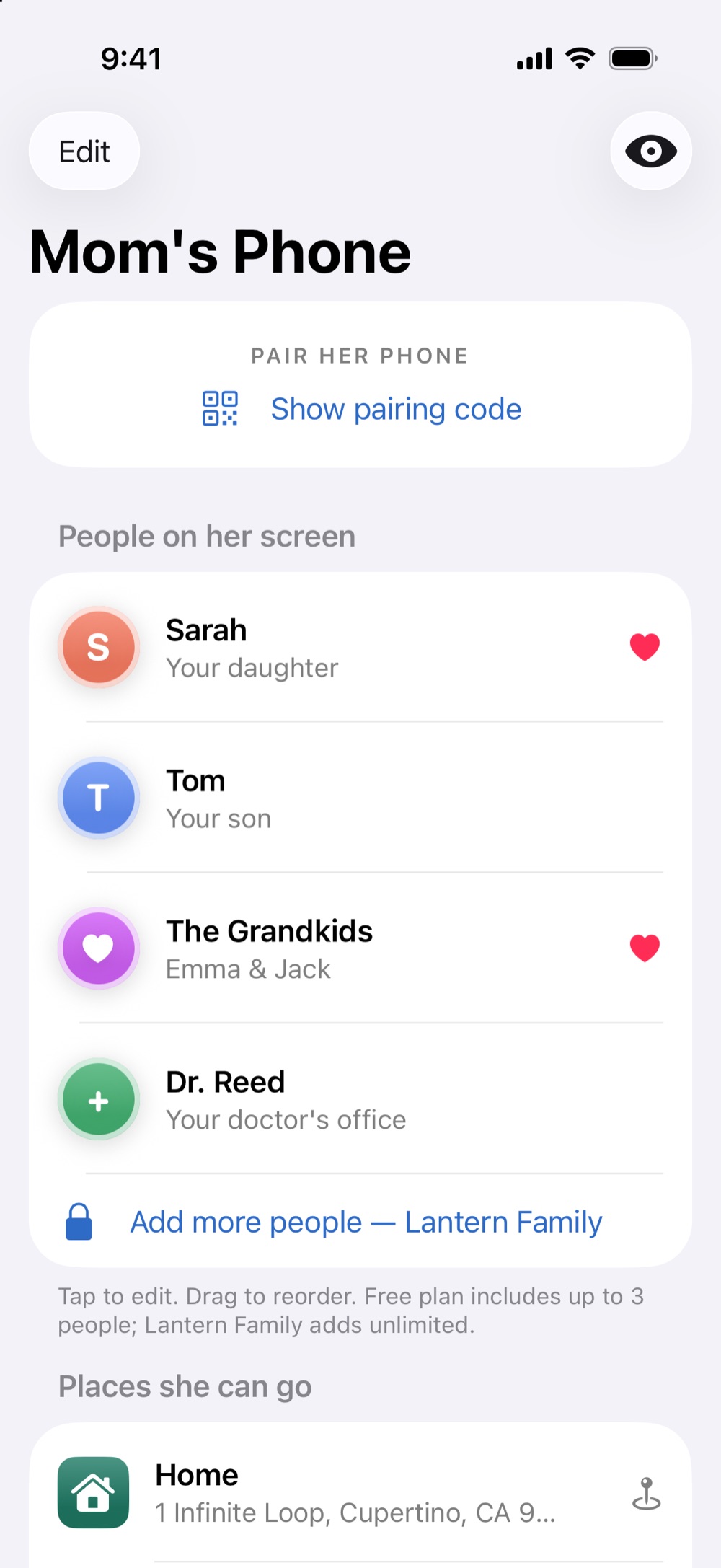
Everything above makes the iPhone usable. It doesn't make it feel like theirs. Simple Phone Helper adds the layer setup can't: one calm screen with the family as big faces, a warm greeting with the day and date, one-tap calls and FaceTime, a Help button, and tools that magnify and read aloud — all configured from your phone, so the setup you did today stays fresh from wherever you are. Install it as the last step of setup day, and the phone starts its new life with a place they'll actually want to open.
Give them a calm place on the phone they already own
Simple Phone Helper is coming soon to the App Store. Join the launch list and we'll email you the day it's ready.
Join the launch listFAQ
Should my elderly parent have their own Apple ID or share mine?
Their own — always. A shared Apple ID mixes your messages, contacts, photos, and purchases with theirs, and it's genuinely hard to untangle later. Create theirs with their email and store the password where you've both agreed.
How long does it take to set up an iPhone for an older adult?
About an hour if you follow a checklist and rehearse one call together, plus carrier transfer time. The order matters more than the speed — identity and safety first, home screen last.
What apps should be on an elderly parent's home screen?
Start with five: Phone, Messages, and Camera in the dock; Photos and FaceTime on the page. Add more only when they ask for it — a calm first screen prevents more confusion than any single setting.